How to install & use OliveTin on Rocky Linux
Introduction
Have you ever gotten tired of typing in the same CLI commands over and over again? Have you ever wanted everyone else in your house to be able to restart the Plex server without your intervention? Do you want to just type in a name in a web panel, push a button, and watch a customized Docker, incus, or LXD container magically appear?
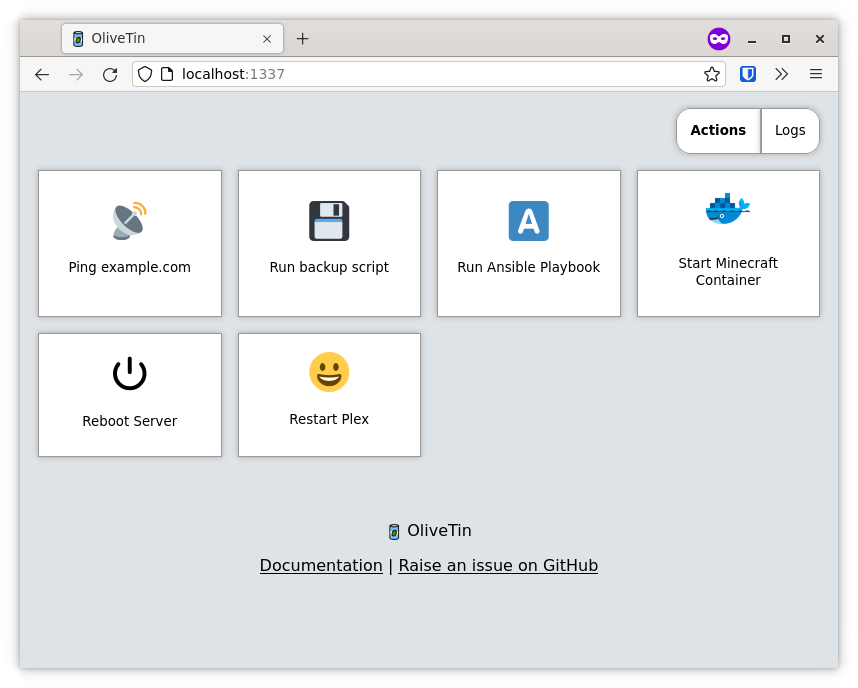
Then you might want to check out OliveTin. OliveTin is just an app that allows for the generation of a web page from a configuration file, and that web page has buttons. Push the buttons, and OliveTin will run preset bash commands that you set up yourself.
Sure, you could technically create something like this yourself, from scratch, with enough programming experience... but this is way easier. It looks a little something like this when set up (image courtesy of the OliveTin repository):
NEVER run this app on a public server
This app is, by design and the creator's own admission, meant to be used on local networks, maybe on dev setups. However, it has no user authentication system at present, and (until the developer fixes this) runs as root by default.
So yeah, use this all you want on a secured and firewalled network. Do not put it on anything meant to be used by the public. For now.
Prerequisites and assumptions
To follow this guide you will need:
- A computer running Rocky Linux
- A minimal amount of comfort or experience with the command line.
- Root access, or the ability to use
sudo. - To learn the basics of YAML.
Installing OliveTin
OliveTin is an active project with continuous bug-fixes and improvements, so it is a good idea to install the latest version for your architecture. Pre-built RPMs are available for most architectures.
- Go to the OliveTin GitHub releases page here.
- Click the "Assets" arrow for the most recent version, and then at the bottom of the shown list, click "Show all 36 assets."
- From the list, select the RPM version for your architecture (amd64, arm64, risc64).
- Right-click that version and copy the link.
-
Type
wgetand then paste the content of the URL you copied into yourwgetcommand. Replace[release_version]with the release and[arch]with your architecture:wget https://github.com/OliveTin/OliveTin/releases/download/[release_version]/OliveTin_linux_[arch].rpm -
Then install the app with this, remembering to replace the URL with your actual URL:
sudo rpm -i OliveTin_linux_[arch].rpm
OliveTin can run as a normal systemd service. Do not enable the service yet. You need to set up your configuration file first.
Note
After some testing, I have determined that these same install instructions will work just fine in a Rocky Linux incus or LXD container. For anyone who likes Docker, pre-built images are available.
Configuring OliveTin actions
OliveTin can do anything bash can do, and more. You can use it to run apps with CLI options, run bash scripts, restart services, and so on. To get started, open up the configuration file with the text editor of your choice with elevated privileges sudo:
sudo nano /etc/OliveTin/config.yaml
The most basic kind of action is a button. You click the button, and OliveTin runs the command on the host computer. You can define it in the YAML file with:
actions:
  - title: Restart Nginx
    shell: systemctl restart nginx
You can also add custom icons to every action, such as a unicode emoji:
actions:
- title: Restart Nginx
icon: "F504"
shell: systemctl restart nginx
There are many configuration options. Do some research on the ones that you might need for your actions. You can also use text inputs and drop-down menus to add variables and options to the commands you want to run. If you do, OliveTin will prompt you for input before running the command.
By doing this, you can run any program, control remote machines with SSH, trigger webhooks, and more. Check out the official documentation for more ideas.
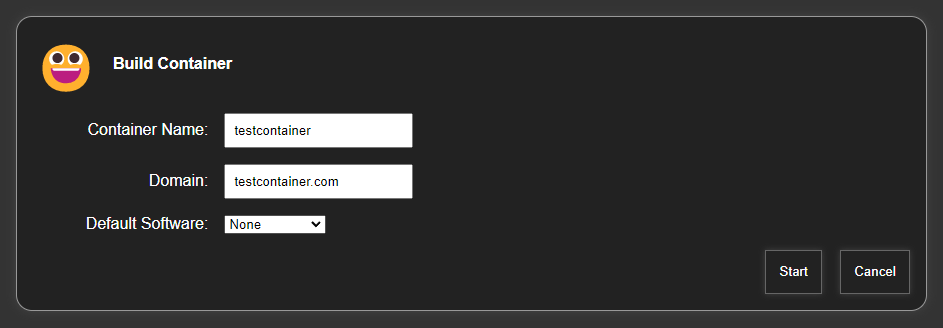
Here is an example from the author that runs a script to generate an LXD container with a web server pre-installed. With OliveTin, the author was able to create a GUI for running that script:
actions:
- title: Build Container
  shell: sh /home/ezequiel/server-scripts/rocky-host/buildcontainer -c {{ containerName }} -d {{ domainName }} {{ softwarePackage }}
  timeout: 60
  arguments:
    - name: containerName
      title: Container Name
      type: ascii_identifier

    - name: domainName
      title: Domain
      type: ascii_identifier

    - name: softwarePackage
      title: Default Software
      choices:
        - title: None
          value:

        - title: Nginx
          value: -s nginx

        - title: Nginx & PHP
          value: -s nginx-php

        - title: mariadb
          value: -s mariadb
On the front-end, it looks like this. (OliveTin does have a dark mode as well.):
Enabling OliveTin
Once you have your configuration file built the way you want it, enable and start OliveTin with:
sudo systemctl enable --now OliveTin
Every time you edit the configuration file, you will need to restart the service in the usual way:
sudo systemctl restart OliveTin
Conclusion
OliveTin is a great way to run everything from bash commands to some fairly complex operations with scripts. Remember that everything runs as root by default, unless you use su or sudo in your shell commands to change the user for that particular command.
You should be careful how you set this up, because of the elevated privileges default settings, especially if you plan to give access to (for example) your family, to control home servers and appliances, and so on.
Again, do not put this on a public server unless you are ready to secure the page yourself.
Otherwise, have fun with it. It is a neat little tool.
Author: Ezequiel Bruni
Contributors: Steven Spencer, Ganna Zhyrnova