Cockpit KVM dashboard
Вступ
Cockpit — це інструмент адміністрування сервера, який надає просту у використанні інформаційну панель для керування сервером. Однією з особливостей Cockpit є те, що за допомогою пакета він може керувати віртуальними машинами KVM за допомогою веб-інтерфейсу, подібного до VMware ESXi або Proxmox.
Передумови
- Сервер Rocky Linux із увімкненою апаратною віртуалізацією
- Доступ до репозиторіїв Rocky Linux
dnf
Встановлення Cockpit
Cockpit встановлюється за замовчуванням у Rocky Linux. Однак підтримка KVM не встановлена з коробки. Ми встановимо його через dnf:
dnf install -y cockpit-machines
Також встановіть libvirtd:
dnf install -y libvirt
Enabling cockpit
To enable both KVM virtualization and Cockpit, enable the systemd services:
systemctl enable --now libvirtd cockpit.socket
Увімкнувши cockpit, відкрийте браузер за адресою http://ip_address:9090 (примітка: замініть ip_address на IP-адресу вашого сервера):
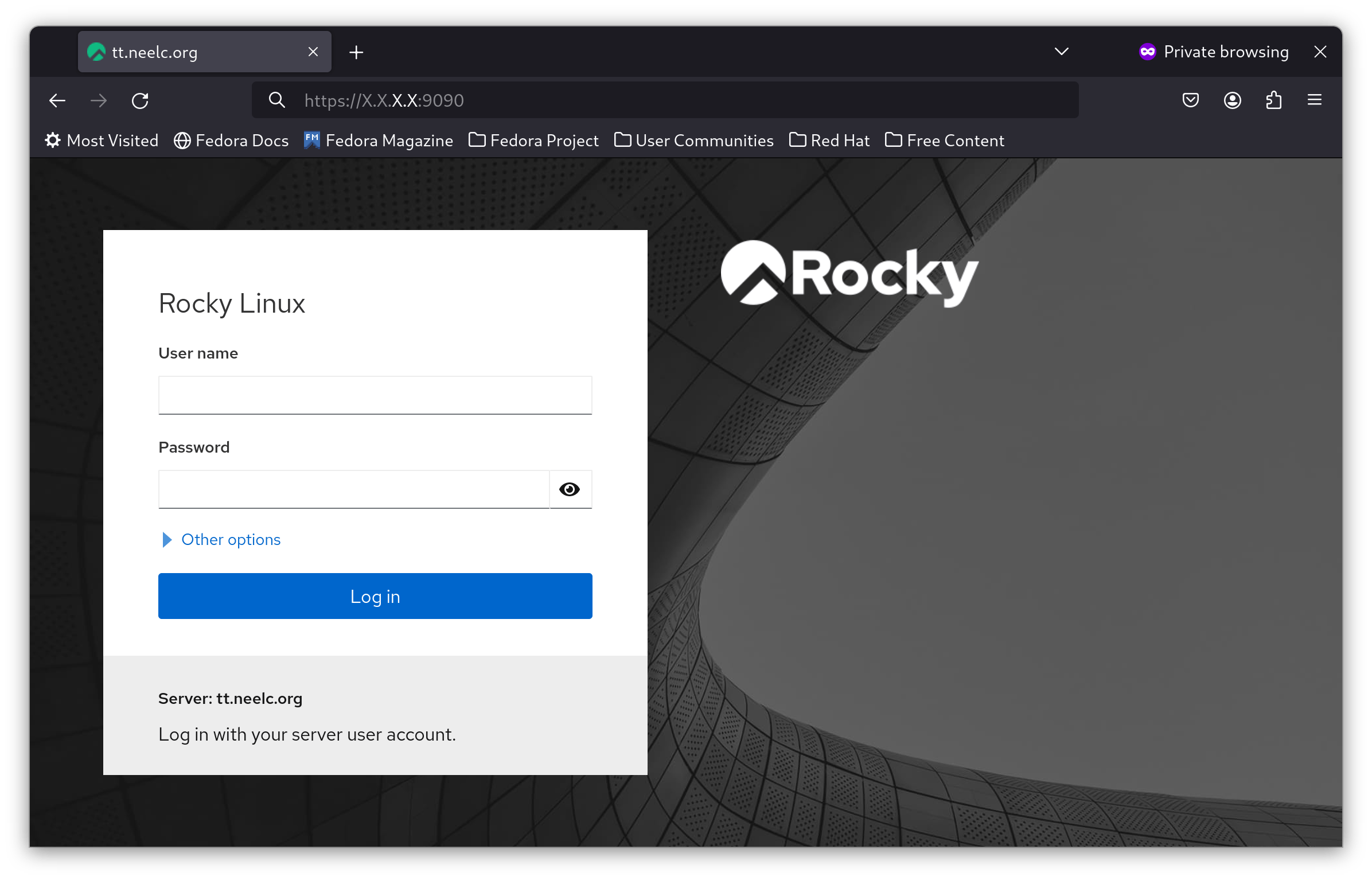
Login as a non-root user, and you should see a dashboard similar to the one shown here:

Creating a virtual machine
In this guide, you will create a Rocky Linux 9 virtual machine on your host system, using automation to add a username and root password.
To create a virtual machine in Cockpit, first click on the blue Turn on administrative access button, and enter your password if needed:
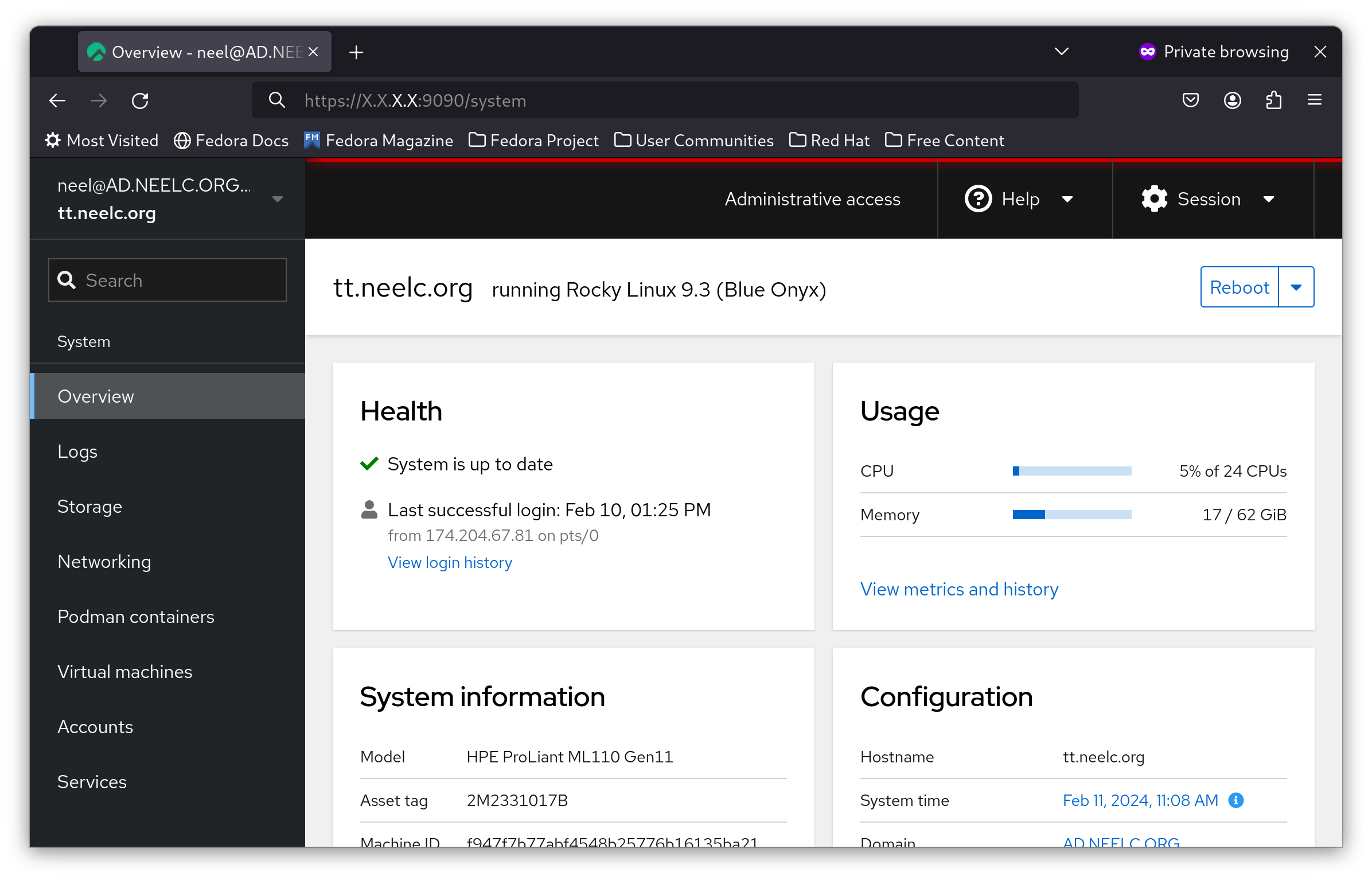
You are now logged in as root in Cockpit. In the sidebar, click on Virtual Machines:
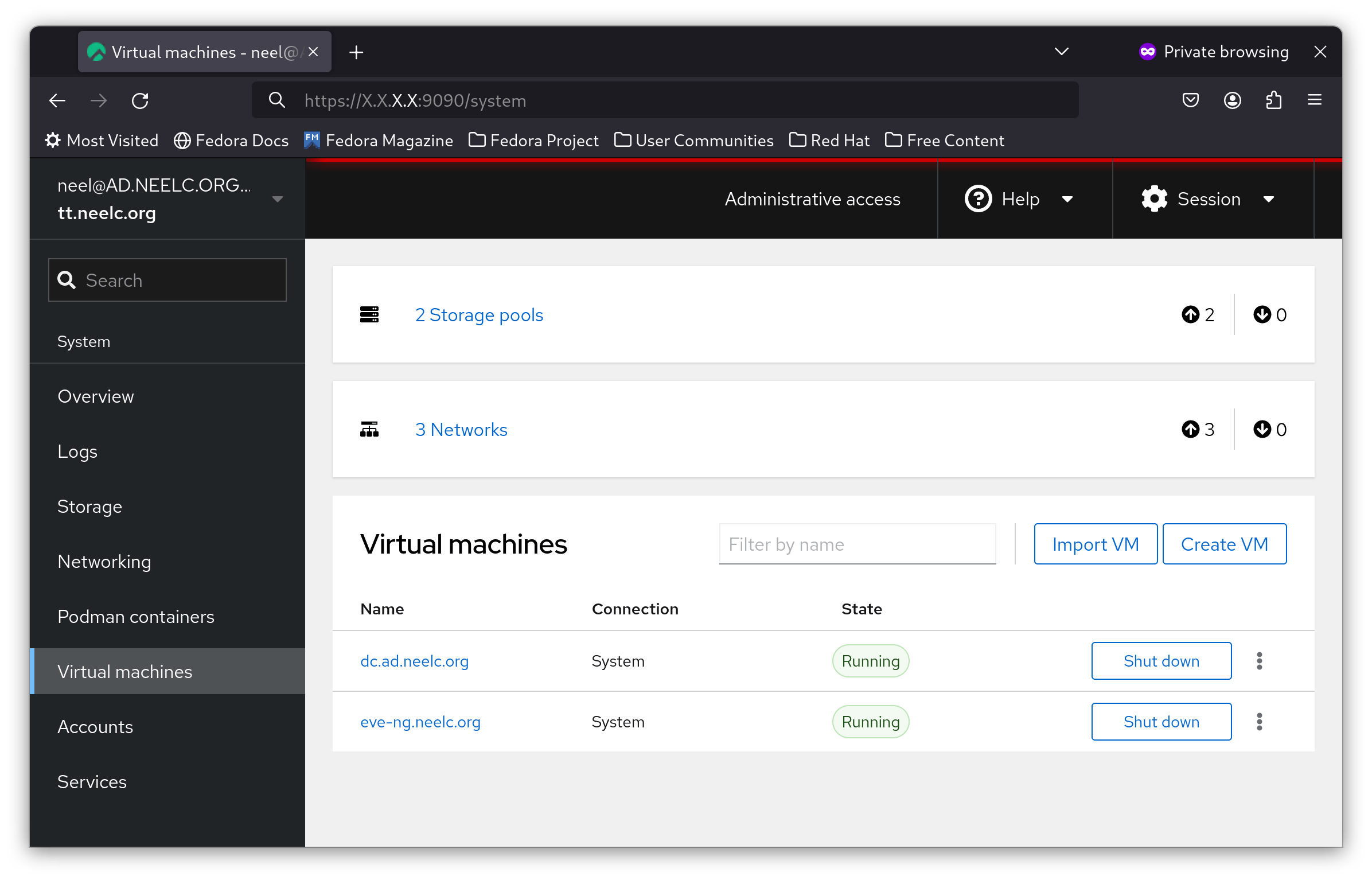
Then click on Create VM:
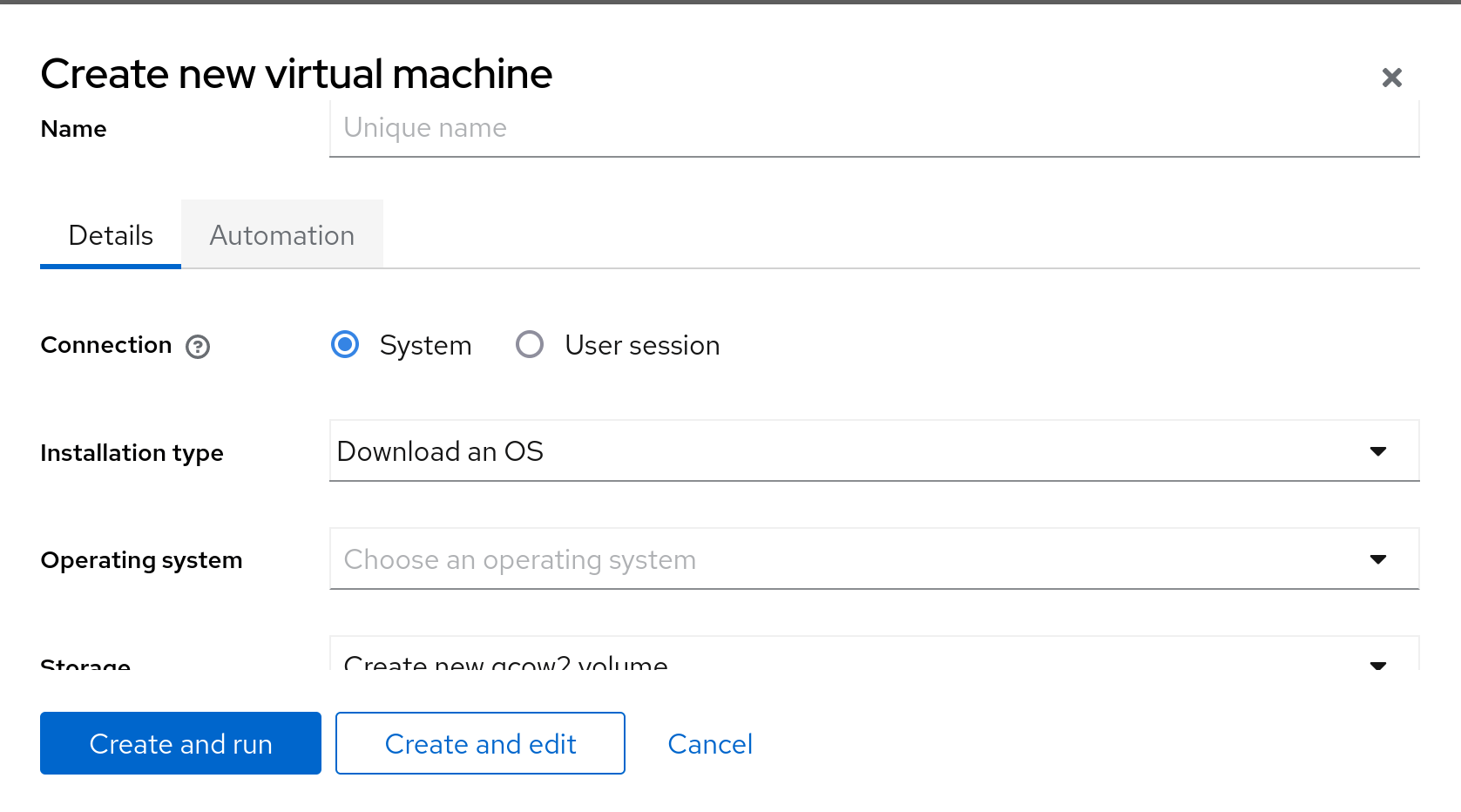
In the Operating system dropdown, select Rocky Linux 9 (Blue Onyx):

Next, click on Automation, and fill in the login details you want on your new VM:
Finally, select Create and run.
In a few minutes, select your newly-created VM, you will have its IP address:
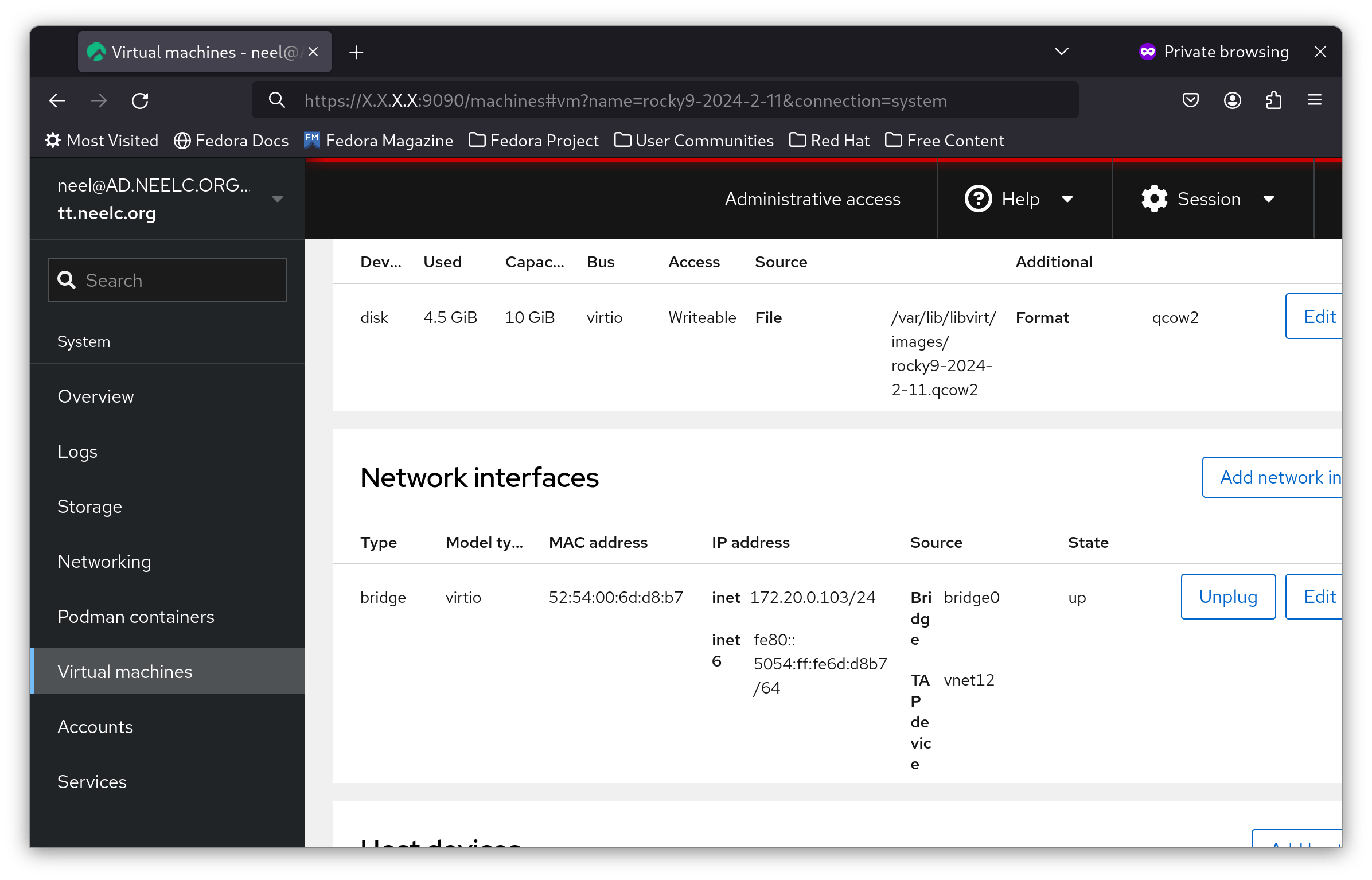
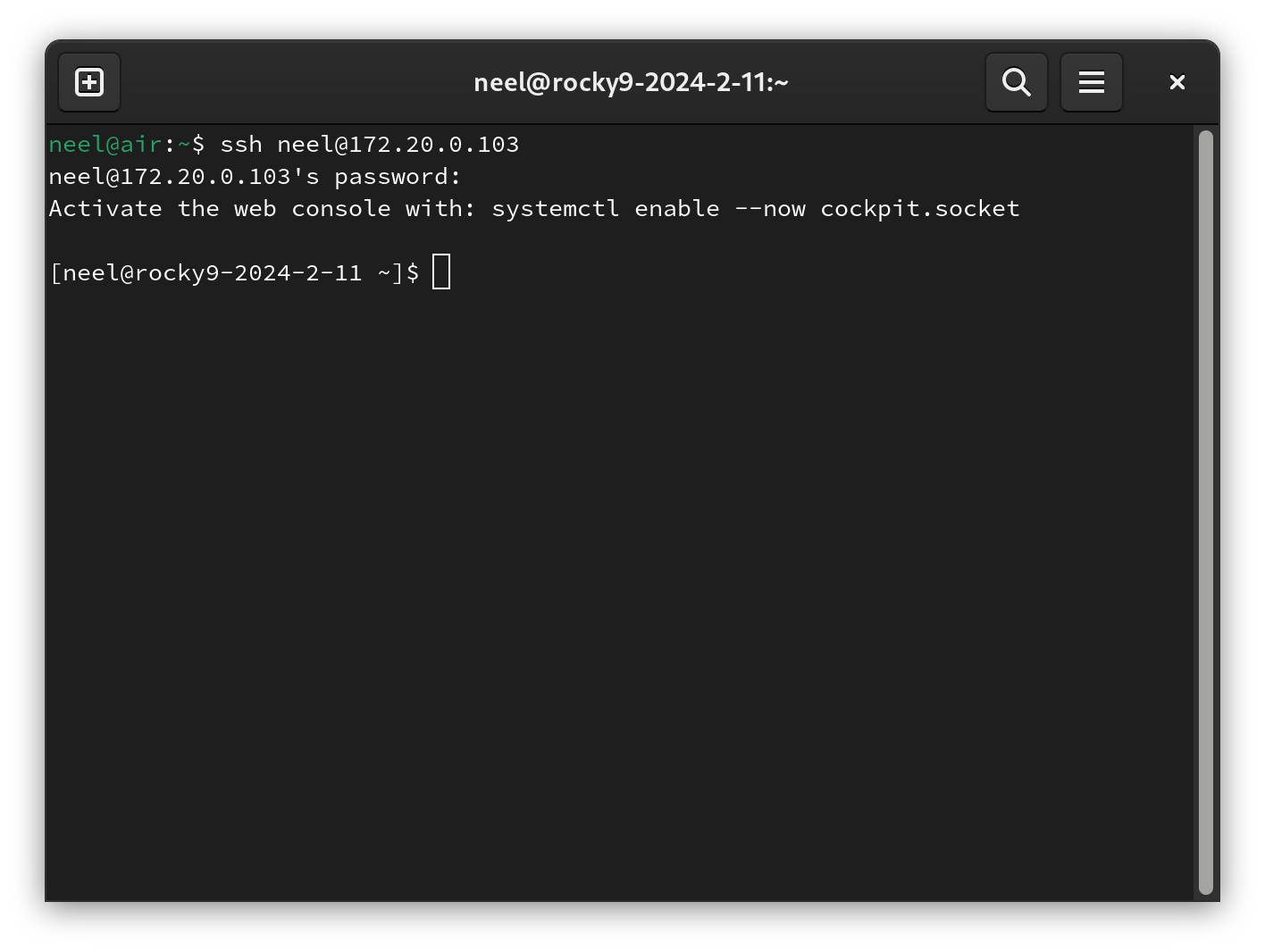
SSH into your hypervisor, and SSH into the IP address from Cockpit. In this example, it is 172.20.0.103. You will be logged into your new server:
Limitations
While Cockpit is great for creating and managing virtual machines, there are a few limitations to be aware of:
- You cannot create a bridge interface.
- You cannot create a new image in any storage pool, only the
defaultone.
Fortunately, you can create these at the command line, and then Cockpit can use them.
Conclusion
Cockpit is an invaluable tool for managing a Rocky Linux server via a web interface. It is personally the author's go-to tool for creating virtual machines in their home lab. While cockpit-machines may not be as full-featured as ESXi or Proxmox, it gets the job done for 90% of hypervisor use cases.
Author: Neel Chauhan
Contributors: Ganna Zhrynova